
Staff Digital Accessibility Toolkit
Staff Digital Accessibility Toolkit
The Staff Accessibility Toolkit
The Staff Accessibility Toolkit is designed to support staff in creating accessible digital content as part of their everyday work. It serves as a central, always-available resource that provides clear guidance, practical tools, and ready-to-use templates to help reduce uncertainty and build confidence around digital accessibility.
Why Digital Accessibility Matters to Your Work
Digital accessibility is not just a technical requirement—it is part of how we serve students, colleagues, and the public.
It is the law: New ADA Title II regulations require public universities to ensure digital content is digitally accessible.
Staff create a lot of digital content: Everyday tasks like sending emails, sharing documents, posting forms, or updating web content all count.
Accessibility prevents problems before they happen: Creating accessible content from the start reduces last-minute fixes, complaints, and workarounds.
It improves communication for everyone: Clear structure, readable documents, and well-designed content help all users—not just those with disabilities.
You are not expected to be an expert: This toolkit and upcoming trainings are designed to give you practical guidance and clear next steps.
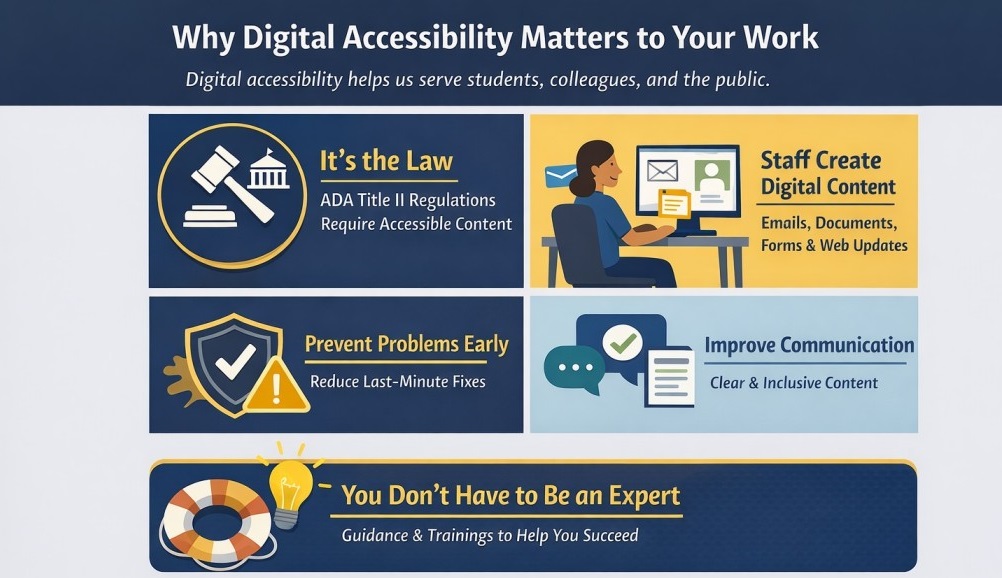
Why Digital Accessibility Matters to Your Work: Digital accessibility is not just a technical requirement—it is part of how we serve students, colleagues, and the public.
What Is Digital Accessibility?
Digital accessibility means that online information and documents can be used by everyone— including people who use screen readers, captions, keyboard navigation, or other assistive technologies.
In practical terms, it means that emails, documents, forms, and web content are created in ways that do not create barriers for people with disabilities.
About Digital Accessibility at the University System of Maryland (USM)
Coppin State University is part of the University System of Maryland (USM), which provides systemwide guidance and resources to support digital accessibility across all member institutions.
The USM Digital Accessibility Hub offers:
Systemwide guidance on digital accessibility expectations
Background information on accessibility laws and standards
Shared resources and training opportunities
These resources help ensure a consistent approach to digital accessibility across the system.
👉 Visit the USM Digital Accessibility Hub
How This Toolkit Fits In
While the USM hub provides system-level guidance, the Staff Accessibility Toolkit is designed to support Coppin-specific workflows and tools.
This toolkit:
Focuses on the tools staff use every day
Provides templates, checklists, and examples tailored to Coppin
Aligns with upcoming staff trainings and local support
Think of the USM hub as the big-picture resource, and this toolkit as your day-to-day, practical guide
How to Use This Toolkit
This toolkit is designed to support you in your day-to-day work. You do not need to read everything at once or memorize accessibility rules. Instead, use the toolkit as a practical reference whenever you are creating, sharing, or updating digital content.
Start Here
Use the templates when creating new documents or communications
Review the checklists before sending or publishing content
Follow the step-by-step guides when using built-in accessibility tools
Use It While You Work
Keep the toolkit open while drafting emails, documents, or forms
Apply the “Before You Send/Publish” checks as a final review step
Make small improvements as you go—progress matters more than perfection
When You’re Unsure
Use the toolkit to identify whether an issue can be fixed using standard tools
Follow the escalation pathways when content cannot be made accessible locally
Reach out for support rather than guessing or delaying publication
Connect It to Training
Toolkit resources align directly with staff training sessions
Training will reference specific toolkit sections you can return to later
Recordings and examples will be added to support continued learning
Remember
Accessibility is a shared responsibility
You are not expected to be an expert
This toolkit is your first stop for staff accessibility questions
Toolkit Table of Contents
Templates that help you make your content accessible to everyone. Microsoft has tried to make this easier for you. You can get to them straight from your Office application.
Go to File > New and type "accessible templates" in the Search for online templates box.
Use these templates when creating new documents, emails, or announcements. They are already set up with accessible structure and formatting, so you don’t have to start from scratch or worry about missing key accessibility elements.
These short checklists help you quickly review content before sending or publishing it. They focus on the most common accessibility issues and are designed to take just a few minutes to complete.
Microsoft Word Accessibility Checklist
PowerPoint Accessibility Checklist
These guides walk you through how to use built-in accessibility tools in the software you already use. Follow the steps as you work—no technical background required.
Word Documents
Document Accessibility Checkers (Word, PPT and Adobe)
Document Properties, Plain Language, and Fonts (Word)
Document structure for Microsoft Word (Headings, Tables, Columns, Text Boxes, Lists)
Alt text, Images, and Links in Word
PowerPoint
PowerPoint Accessibility Quick Start Guide
PowerPoint placeholders (layout) for Slide Content
Structure of Slides (Slide layouts, Tables, Lists) in PowerPoint
Visit our Video Tutorials Page
Find all our quick, practical accessibility videos in one place—including how‑to guides for captions, creating accessible Word, PowerPoint, Excel, and emails, plus PDF remediation and more.
A fast, one‑stop resource to help you make your materials accessible.
Not everything needs to be fixed. This guide helps you decide whether content can be updated quickly, should be replaced with a new version, removed, or escalated for help.
This section highlights common accessibility mistakes and shows simple ways to correct them. Use this as a reference when something doesn’t look quite right or keeps coming up.
Top 12 Common Digital Accessibility Issues and Quick Fixes
What Is WCAG—and Why Is It Now Required?
You may have heard WCAG mentioned in conversations about digital accessibility, course materials, or compliance—but what does it actually mean, and why does it matter now?
WCAG stands for Web Content Accessibility Guidelines. These guidelines explain how to create digital content that everyone can use, including people with disabilities. WCAG applies to websites, LMS content, documents, PDFs, videos, and other digital tools commonly used in higher education.
How WCAG Connects to ADA Title II
Under the updated ADA Title II digital accessibility regulations, public colleges and universities are now required by law to ensure their digital content meets WCAG 2.1 Level A and AA standards.
This means:
Digital accessibility is no longer optional
Accessibility is not based on good intentions or accommodations alone
Inaccessible digital content can result in exclusion and noncompliance
WCAG in Plain Language
WCAG is built around four core principles. Digital content must be:
Perceivable – Users can see or hear the content
Operable – Users can navigate and interact with it (including keyboard access)
Understandable – Content is clear and predictable
Robust – Content works with assistive technologies like screen readers
You don’t need to memorize technical standards to get started. Most accessibility improvements involve clear structure, readable text, captions, alt text, and logical navigation, practices that benefit all users.
Want to Learn More (Without the Jargon)?
For a deeper dive written in plain English, this resource breaks WCAG down with examples that are easy to follow:
Bottom line:
WCAG is the standard that makes digital accessibility measurable. ADA Title II makes following it a requirement. Together, they ensure digital content does not exclude students, employees, or members of the public.
Escalation & Support
Some accessibility issues can’t be fixed quickly with Anthology Ally or Microsoft Office tools. This section helps staff recognize when additional support is needed, decide next steps, and continue work without unnecessary delays.
When to Ask for Help
Escalate accessibility issues when:
Ally flags severe issues you don’t know how to resolve
A PDF is scanned or image-based
Tables or reading order do not work correctly with screen readers
Video content lacks captions or audio lacks transcripts
Color contrast fails accessibility checks, even if it looks acceptable visually
What Types of Content Should Be Escalated
Scanned or image-based documents
PDFs missing headings or tags
Files with broken or illogical reading order
PDF files that cannot be edited in Word
Videos require captions
Audio-only content requires transcripts
Auto-generated captions must be reviewed for accuracy
Not every file should be remediated. If the content is outdated or low-use, replacement or removal may be the better option.
Support Options
Contact the I.D.E.A Team for support
Attend Fix-Your-Content Open Office Hours: When: Thursdays
12:00–2:00 PM (Sign-up required)
4:00–6:00 PM (Sign-up required)
Format: Virtual only
Reminder: Accessibility is shared, ongoing work. Asking for help is expected and encouraged.
Training & Additional Resources
This section connects you to staff trainings, recordings, office hours, and other accessibility resources. Use it to deepen your understanding or find support beyond the toolkit.
Professional Development Opportunities(Self-paced courses, trainings)
Attend Fix-Your-Content Open Office Hours: In addition to training sessions, faculty/staff can register for Fix-Your-Content Open Hours, held Thursdays, for hands-on assistance with remediating specific documents or files.
When: Thursdays
12:00–2:00 PM (Sign-up required)
4:00–6:00 PM (Sign-up required)
Format: Virtual only