Student Account Password
EagleTech
| Overview |
|---|
Manage your Coppin State University account password. Your password will be used to access your CSU Accounts: EagleLINKS, Blackboard, Email, and CSU campus computers. |
The passwords for accessing your Network, E-mail, EagleLINKS, and Blackboard are synchronized. This means that after you reset your password through the EaglePass Password Reset Portal, the system will automatically update your Email, EagleLINKS and Blackboard password to match your “NEW Network Password.” You do not have to reset your EagleLINKS and Blackboard passwords separately.
Password Reset
Use this section when you need to reset your EaglePass password using your verified recovery email address or mobile phone number.
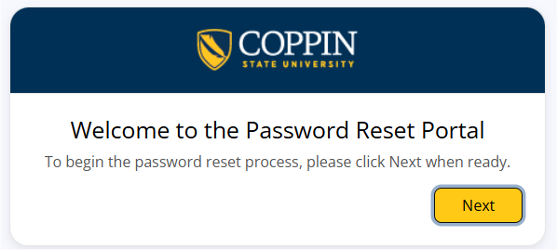
Step 1. Start the Password Reset Portal
Open the EaglePass Password Reset Portal and select Next to begin.
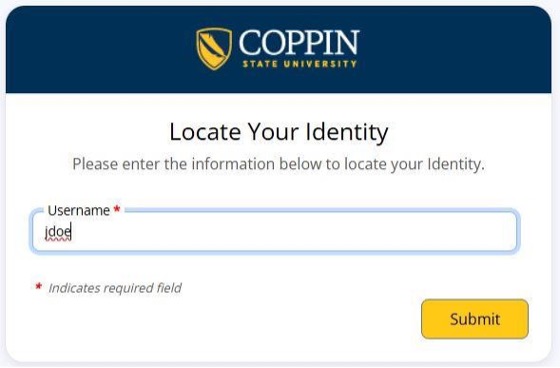
Step 2. Locate your identity
Enter your Coppin username, then select Submit.
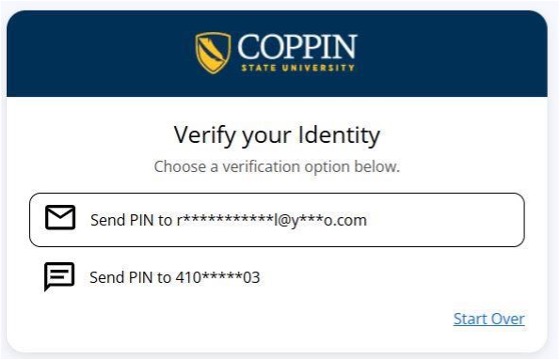
Step 3. Choose a verification method
Select the recovery email address or mobile phone number where you want to receive your verification PIN.
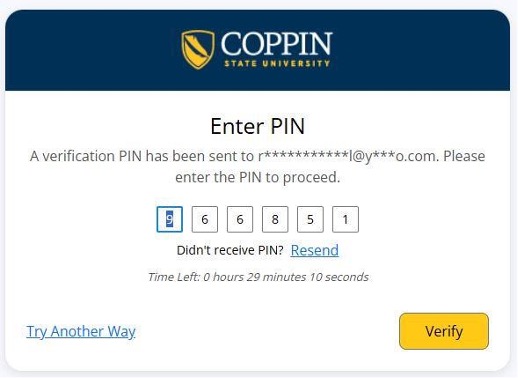
Step 4. Enter the verification PIN
Check your selected recovery method for the PIN, enter the code on screen, and select Verify. Use Resend or Try Another Way if needed.
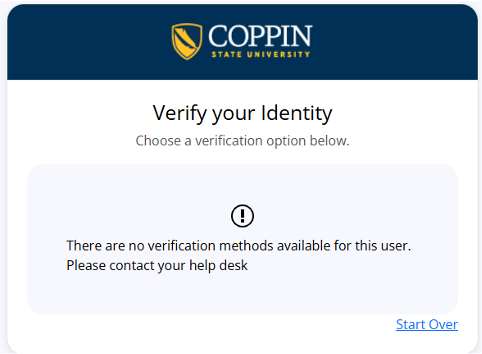
Optional: If no verification methods are available
If you see the message below, stop the password reset process and contact CSU IT Service Desk for assistance before continuing.
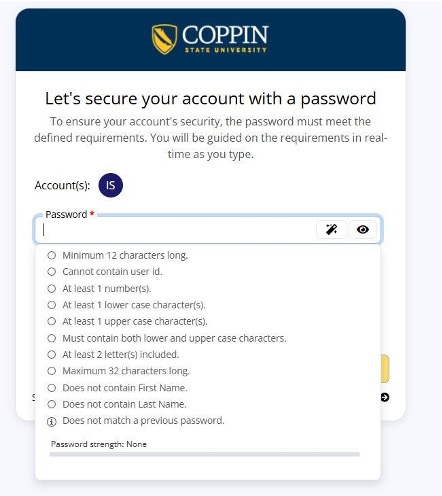
Step 5. Create a new password
Type a new password that meets the on-screen requirements below.
• Minimum 12 characters long.
• Cannot contain user ID.
• At least 1 number.
• At least 1 lower case character.
• At least 1 upper case character
• Must contain both lower and upper case characters.
• At least 2 letters included.
• Maximum 32 characters long.
• Does not contain first name.
• Does not contain last name.
• Does not match a previous password.
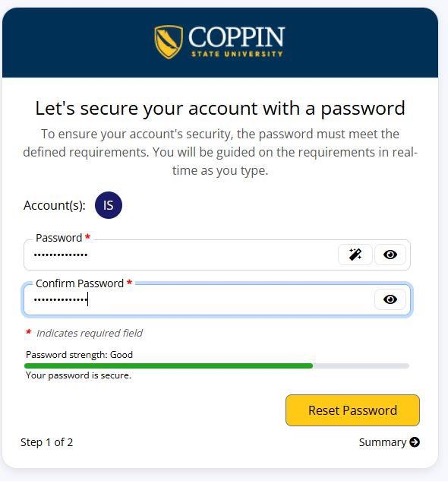
Step 6. Confirm the new password and reset it
Re-enter the same password in Confirm Password, make sure the password strength indicator shows that the password is secure, and then select Reset Password.
Step 7. Complete the password reset
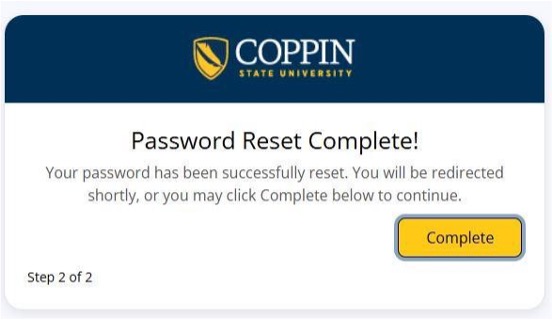
When the confirmation screen appears, select Complete to finish.